How to Check MDMS Registration Status Online in Nepal
Last updated: November 2026
Short answer: Go to the official NTA MDMS portal at mdms.nta.gov.np/public. For a quick public check, enter your 15-digit IMEI number and click Search. If you have already applied for registration, use the “Check Individual Registration Status” option instead and enter your IMEI plus the email address you used in your application. This site does not check your IMEI itself — the check always happens on the official NTA portal.
This guide explains both checks, because people confuse them. The public check tells you whether a phone is already registered. The individual status check tells you what happened to an application you already submitted.
The Two MDMS Status Checks — Do Not Mix Them Up
| Check | What it tells you | What you need |
|---|---|---|
| Public registration check | Whether an IMEI is already registered | 15-digit IMEI number only |
| Individual application status check | Whether your submitted application is approved, pending or rejected | IMEI number + the email address used in your application |
If you only want to know “is this phone registered?”, use the public check. If you applied and are waiting for approval, use the individual status check.
Find Your IMEI First (30 Seconds)
You cannot check anything without the IMEI number. It is a unique 15-digit number for every phone.
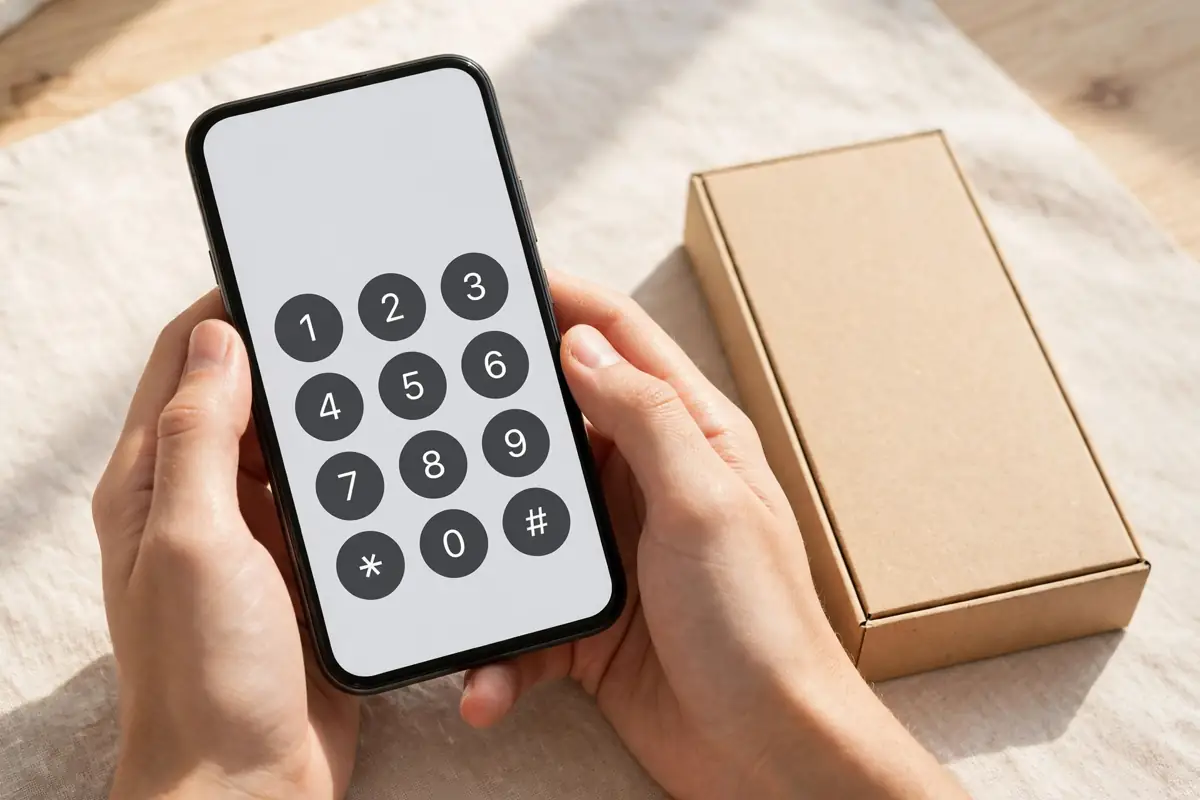
- Dial *#06# on your phone. Your IMEI number (or two numbers, for dual SIM phones) will appear on the screen. You do not need to press call.
- Take a screenshot or write both numbers down exactly. One wrong digit gives a wrong result.
- If your phone has two SIM slots, note IMEI 1 and IMEI 2 separately. Check both. A phone can show as registered on one SIM and not registered on the other.
- You can also find the IMEI in Settings > About Phone, or on the sticker on your original phone box.
Never share your IMEI number publicly on social media or on untrusted websites. Only enter it on the official NTA MDMS portal.
Method 1: Public MDMS Registration Check (Quick Check)
Use this method to check your own phone, or a phone you are about to buy.
- Go to the official MDMS portal at mdms.nta.gov.np/public.
- Enter your 15-digit IMEI number in the first box, under “Check Registration status of your mobile”.
- Click Search.
- Read the result carefully.
If it says “Registered”: your phone is white-listed. It should work normally on Nepali mobile networks.
If it says “Not Registered”: your phone is not in the MDMS database yet. Do not panic — this does not always mean the phone is illegal. It may simply need to be registered. Read our MDMS Registration guide for the full application process, documents and fee information, and verify the current rules on the official portal before you pay anything.
If you are buying a phone: use the second box on the same portal page, under “Check Status Before Buying a New Mobile”. Enter the IMEI printed on the box, then click “Validate Registration”. If it shows “Not Registered”, do not pay for the phone until you understand why — an unregistered phone can be blocked from Nepali networks later.
Check both IMEIs on a dual SIM phone, and the eSIM IMEI too if your phone has one. Checking only one IMEI is the most common reason people get a surprise later.
Method 2: Individual Application Status Check (You Already Applied)
Use this method only if you have already submitted an MDMS registration application and want to know its progress.
- Go to the official MDMS portal.
- Scroll down and click “Check Individual Registration Status”.
- Enter your device’s IMEI number.
- Enter the email address you used when you applied. This must match exactly — the portal uses it to find your application.
- Click “Check Registration Status”.
- Your application status will be displayed on the screen.
NTA usually approves registration within 24 to 48 hours after a complete application, but this can take longer during busy periods. If your status is still pending after that, first check the email account you used for the application — NTA sends approval or rejection notices by email.
If your application was rejected: the most common reasons are blurry document scans, or personal details that do not match your passport or citizenship document. Correct the details, upload clear scans, and resubmit. Do not submit multiple applications for the same device at the same time — it can delay the process further.
What Each Result Means
- Registered: The IMEI is in the MDMS database. Keep your purchase bill and registration details safe anyway.
- Not Registered: The IMEI is not in the database. You may need to register it through the individual registration process, depending on how the phone entered Nepal.
- Pending: Your application is still being checked by NTA. Wait for the email update before applying again.
- Rejected: Your application was not accepted, usually for a document or detail problem. Fix the problem and resubmit.
If a result does not make sense — for example, you bought the phone from an authorised shop in Nepal but it shows as not registered — re-check the IMEI digit by digit first, then check the second IMEI, then contact NTA through the details on our MDMS Contact Information guide.
Troubleshooting: MDMS Status Check Not Working
“I typed my IMEI but got no result.”
Re-type it slowly. Compare it with the *#06# screen and the box sticker. A single wrong digit is enough to fail the check.
“Only one SIM works.”
This usually means only IMEI 1 is registered and IMEI 2 is not. You need to register both IMEIs. See our dual IMEI registration guide.
“The portal is not loading.”
Try again after some time and use only the official portal link. Do not enter your IMEI on copycat sites that claim to check MDMS status. If the problem continues, read our guide on whether MDMS is working in Nepal, and contact NTA directly.
“I used a different email for the status check.”
The individual status check needs the exact email address from your original application. If you cannot access that email anymore, contact NTA for help — do not create a duplicate application first.
“My phone was bought in Nepal, why is it not registered?”
Phones imported through authorised channels are normally registered by the importer, but mistakes happen. Ask the shop for the VAT bill and proof of registration, and check both IMEIs before you accept that the phone is fine.
MDMS Status Check: Safety Rules
- Check status only on mdms.nta.gov.np. This website is an unofficial information guide and does not collect, store or check IMEI numbers.
- Never pay anyone who promises to “fix” your MDMS status outside the official portal.
- Never share screenshots showing your full IMEI number in public groups or comments.
- Keep your passport or citizenship scan, boarding pass or arrival stamp, and purchase bill safe — you may need them if you have to register or appeal a rejection.
Frequently Asked Questions
What is the difference between the public check and the individual status check?
The public check needs only your IMEI and tells you whether a phone is registered. The individual status check needs your IMEI plus your application email, and tells you the progress of an application you already submitted.
Do I need to check both IMEIs on a dual SIM phone?
Yes. Check IMEI 1 and IMEI 2 separately, and the eSIM IMEI if your phone has one. If only one is registered, the other SIM slot can still be blocked.
Can I check MDMS status before buying a phone?
Yes. Use the second box on the official portal page, enter the IMEI from the box sticker, and click “Validate Registration” before you pay.
How long does MDMS approval take?
NTA usually approves a complete application within 24 to 48 hours, but busy periods can take longer. The public IMEI check itself is instant once you enter the number.
What should I do if my phone shows as not registered?
First, re-check both IMEIs carefully. Then follow the individual registration process on the official portal, with clear documents that match your passport or citizenship details. Verify the current fee on the official portal before paying — the grey-phone paid window is reported as closed, and a migrant worker’s first phone is listed as FREE on our registration guide.
Final Checklist Before You Check
- ☐ IMEI 1 and IMEI 2 written down exactly from *#06#
- ☐ Official portal only: mdms.nta.gov.np/public
- ☐ Public check for “is it registered?”, individual check for “what happened to my application?”
- ☐ Both IMEIs checked, not just one
- ☐ Result saved or screenshotted for your records
If you have not registered yet, start with our MDMS Registration guide. If your phone was lost or stolen, read our lost and stolen phone guide first — the steps and the registration option are different.
Disclaimer: This article is an unofficial information guide, not official NTA guidance. MDMS rules, fees and portal steps can change, so always verify the current position on the official NTA MDMS portal before you act.